





The early history of personal computers is stacked with systems such as the Apple II and the Commodore 64 that had the components living inside a keyboard. But as technology evolved, the keyboard became a peripheral and the PC itself was either in a separate box or the whole system was a laptop.
Now, HP has a new spin on this decades-old idea. It embeds a full-fledged AI PC inside a 101-key keyboard you can carry with you from the office to home.
Unlike ‘80s microcomputers or hobbyist-oriented products like the Raspberry Pi 500, the EliteBoard G1a is squarely targeted at business. The system is part of HP’s commercial lineup, alongside its EliteBook laptops, and, for better or worse, it comes with HP Wolf Security preinstalled. The company clearly hopes organizations will buy these in bulk. But to benefit from it, you really have to prefer a mobile keyboard to a traditional laptop, all money aside.
Who’s it for?
The EliteBoard G1a is trying to create a new niche.
When we talked with product managers at HP, they suggested IT departments would buy these computers for two types of workers.
The first group is so-called “dual deskers” – knowledge workers who have a desk with a monitor at work and another at home. The second group includes deep-pocketed call centers or environments where desk space is at a premium.
From time immemorial, dual-deskers have carried laptops and closed their lids when they docked to a monitor at work. With the EliteBoard, they could simply schlep the keyboard, which weighs a mere 1.49 pounds – about half the weight of a lightweight laptop. To make this situation work in companies with managed systems, we have to assume that either the IT department would give out monitors to use at home or offer some reason (a subsidy? a mandate?) for employees to buy their own for home.
The EliteBoard connects to monitors using its USB4 port, so its ideal monitor is one that has Thunderbolt or USB video connectivity built in. Less-expensive and older monitors don’t have this type of connectivity, but select configs of the EliteBoard come with an optional USB-to-HDMI adapter that you can use with other monitors, and it has a USB pass-through for power. That said, HP demonstrated the EliteBoard at numerous press events by showing how much desk space it saves by using a single USB cable to get power, video out, and connectivity to peripherals via the monitor. So if companies want employees to be able to take advantage of this scenario at home, that means shelling out another few hundred bucks for a modern monitor, or making employees do it.
Today, companies with limited desk space for a call center or another cramped work area could just buy a tiny desktop to sit behind the monitor or next to it. However, building all of the PC’s guts into the keyboard makes a lot of sense for space savers, because a keyboard is something every PC needs and a desktop chassis is not. If a company wanted to, it could give each employee their own EliteBoard, have them plug it into a monitor during work time and then have them stick it in a drawer when they go off shift and someone else comes on.

The problem for call centers is that the HP EliteBoard G1a is much more powerful and much more expensive than what they need. At press time, the G1a was priced at $1,499 for the lowest end config. And most companies probably don’t need employees to each have their own PC that they lock away after they punch out.
“The call center angle is probably the stronger pitch, but those buyers are shopping entry-to-mid-market. They want something cheaper and simpler than a mini desktop, not a Copilot+ PC with up to 64GB of RAM,” Kieren Jessop, a research manager with analyst firm Omdia. “HP has built an impressive piece of engineering in search of a problem that most enterprises have already solved with a laptop — or will solve with a thin client.”
Configurations
HP makes the EliteBoard G1a in a variety of configurations that vary by market. Companies can get it with various AMD Ryzen CPUs, up to 64GB of RAM and an SSD up to 2TB in capacity. It comes with either a detachable or embedded cord, and optionally with a 32 WHr battery that promises up to 3.5 hours of endurance.
Why would you need a battery on a product that demands to be used at a desk and plugged in? The most likely reason is to let the keyboard go into sleep mode when it’s in your bag. Employees could also hook the EliteBoard G1a up to a portable monitor and use it unplugged that way, but then why not just buy them a laptop?
At press time, prices ranged from $1,499 to $3,423 in the US. The lowest-end config has a Ryzen AI 5 Pro 340, 16GB of RAM, an integrated cable, and a 256GB SSD. Fifty bucks more will get you the same configuration with a 512GB SSD, as per HP.com. The highest-end config listed comes with a Ryzen AI 7 Pro 350 CPU, 32GB of RAM, and a 512GB SSD, and sells for only $1,999 at B&H but a whopping $3,423 at HP.com.
Our review config, which sports 64GB of RAM, a Ryzen AI 7 Pro 350 CPU, and a 2TB SSD, has not been listed for sale in the US, and HP didn’t answer when we asked how much it would cost. However, we’d assume that it would cost a lot more than $1,999.
Price vs a Laptop
If all you do is dock your PC at home and at work, you might think, “why pay for a laptop when I don’t need a built-in screen?” But it’s hard to make that argument when the laptop is actually less expensive.
Right now, you can get an HP EliteBook 6 G1aN with the same AMD Ryzen AI 7 350 CPU, along with 24GB of RAM and a 512GB SSD, for just $1,299 – that’s actually less than the cheapest EliteBoard. A custom configured HP EliteBook 8 G1a with the Ryzen AI 7 Pro 350 CPU, 32GB of RAM, and a 512GB SSD is just $1,799.
If you’re comparing the total cost of ownership versus a laptop, also consider the price of a monitor if your users don’t already have one. While you could use an adapter, the ideal use case involves a USB-C monitor that transmits data and power over a single wire. The cheapest HP-branded USB-C monitor I could find at press time was the HP E27k 4K monitor, which was selling for $504. However, I saw a Dell-branded USB-C monitor, the S2725DC, on sale for just $236 at Amazon. If you’re an IT department and you’re kitting out someone for home and office use, you might need to buy them two monitors.
Design
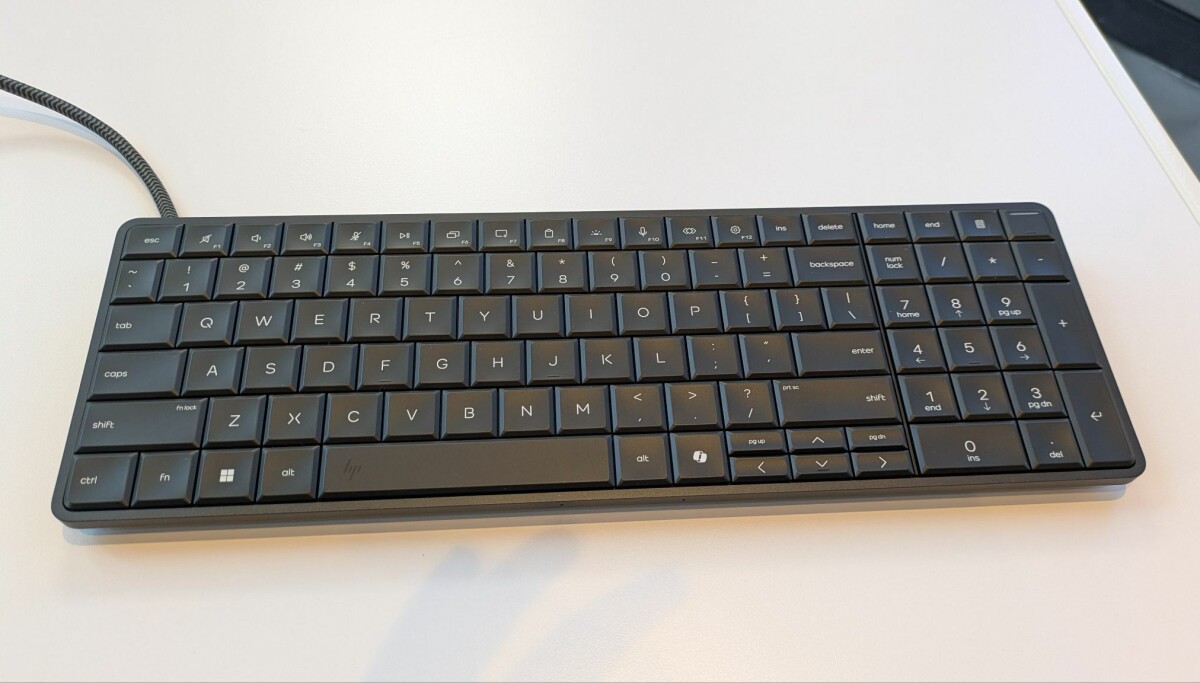
At 14.1 x 4.7 x 0.7 inches, the EliteBoard G1a is the size of a typical, full-size keyboard complete with numpad. It’s a boring but office-friendly dark gray color with a very thin bezel around the keys.
At first glance, there aren’t many ways to know that this is more than just a keyboard. There’s a power button / fingerprint reader that’s located in the upper right corner of the keyboard, though you might easily mistake it for just another key, until you press it and see the blue light turn on.
Turn the keyboard around and on the back lip and you’ll notice a thin vent for airflow. This computer definitely has a fan and you can hear it quite prominently at times. There are also two USB-C ports, a USB4 40 Gbps port and a 10 Gbps port, unless you have the embedded cable, in which case, you just have the 10 Gbps port. Clearly, the 40 Gbps port is the one you’ll want to use for docking, but you can use the 10 Gbps port to connect the dongle for the included wireless mouse or other peripherals.

There’s also a security cable lock slot on the left side. So if you want to chain this to a desk, you can, but we’d argue that defeats the point of the machine.
But how well does it type?
Since this is a computer-in-a-keyboard, the most obvious question we need to answer is “how’s the typing experience?”
Pretty decent.
On the bright side, the EliteBoard G1a has a generous 2 mm of travel, which is more than you’ll find on most laptops, where even 1.5 mm is deep. The keys feel pretty snappy and are in the same feedback league as those on my Lenovo ThinkPad X1 Carbon, but the ThinkPad’s keys have a more curved shape, which is better than the flat tops on the EliteBoard.
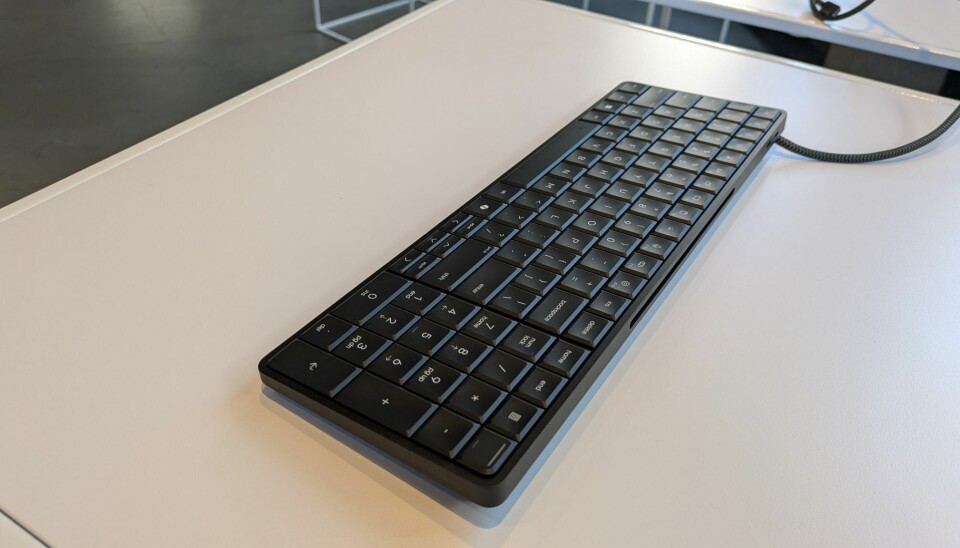
If you’re burning the midnight oil, there’s a built-in backlight which you can enable by hitting the F9 key. It has two different brightness settings so you can decide just how much you want it to shine through.
The layout is pretty standard for a full-size keyboard with a numpad. However, I don’t like how small the arrow keys are, and the Pg Up and Pg Dn are just tiny. There’s no empty space around these keys, which I use a lot when editing documents, so it’s far too easy to miss them. Even on most laptops, these keys are larger.
Another downer is the lack of flip-up feet on its bottom. I like to angle my keyboard up at a 15 to 30 degree angle, but this one is short and flat to the desk. To save my wrists, I always use a gel-filled wrist rest when I type and, without feet to elevate the keyboard, I’m typing down onto the keys because it’s so much lower than the gel pad. This won’t be as much of an issue for folks who don’t use wrist rests.
In short, if you’re used to laptop keyboards or the low-cost keyboards that come with most desktop computers, the EliteBoard G1a will probably seem like a nice step up. However, if you want the best possible typing experience, there’s an entire ecosystem of mechanical keyboards out there with much deeper travel and more feedback.
If you’re not a gamer and you want the best possible typing experience, I recommend a mechanical keyboard with either clicky or tactile switches. Unless you go for a low-profile keyboard, you’ll be getting between 3.6 and 4 mm of travel, so you won’t bottom out as easily when typing. I prefer clicky switches like the Kailh Box White (my favorite) or Cherry MX Blue, but those make some noise so, if you like quiet, Cherry MX Brown switches will do the trick.
To see the difference between my daily driver mechanical keyboard, an Akko 3098N with Kailh Box White switches, and the EliteBoard G1a, I performed the 10fastfingers.com typing test on both. On HP’s keyboard, I managed a strong 96 wpm, which is at the lower end of typical for me, with a six percent error rate. On my daily driver, the numbers were a better 101 wpm with a two percent error rate. Your mileage will vary.
Speaker and Microphone
The EliteBoard G1a has both built-in bottom-facing speakers and a microphone array. In our tests, the speaker was more than loud enough and it was clear enough for voice calls, though we wouldn’t recommend listening to music on it for too long. The drums in AC/DC’s Back in Black sounded a little tinny, though there was a clear separation of sound with the vocals appearing to come from one side while the percussion came from another.
The dual-array microphone was also passable, but not good enough for podcasts. When we talked to a coworker using the built-in mic, she said our voice was clearly audible but a little echoey.
In the box and preloaded
Depending on which config you get, your HP EliteBoard G1a may come with a variety of different accessories in the box. All versions come standard with an HP wireless 675M mouse that connects either by Bluetooth or by an included USB-C wireless 5-GHz dongle. It is not a particularly fancy mouse but it has a couple of side buttons and a scroll wheel. I found myself using my Logitech MX Master 3 mouse instead, because it’s ergonomically shaped and highly programmable.
My review unit also came with the optional soft canvas cover sleeve you can use to protect the EliteBoard G1a while you’re carrying it around. I found this add-on to be about as useful as a laptop sleeve. It might offer some protection and padding for when you stick the EliteBoard G1a in an existing backpack, but it’s not going to replace your briefcase or your backpack when you’re commuting.
I also got the optional HDMI multiport hub, which is a must-have if you don’t already have a Thunderbolt or USB4 docking station or a monitor with that kind of connectivity built in. The hub connects to the USB4 40 Gbps port on the EliteBoard and features two USB-C ports (one for power, one for connectivity), an HDMI out cable for connecting to a monitor, an Ethernet port for wired networking, and an HDMI-in port for a second monitor.
There’s an optional, slim 65W USB-C power adapter that’s helpful if you aren’t connecting to a monitor or docking station that supplies power. If you don’t get one in the box, it’s easy enough to find one for $15 to $30 on Amazon.
Also, if your EliteBoard does not have an embedded cable — mine did not — you get a braided USB cable in the box. The less-expensive configs of the EliteBoard all have embedded cables, but we recommend getting a model without one because it’s easier to carry around without a cable hanging off of it.
HP does not preload a lot of software onto the EliteBoard but it does come with a three-year subscription to HP Wolf Security, which normally costs $36 a year for individual subscriptions. HP Wolf has a malware/virus scanner, a threat containment feature, a secure browser, OS resiliency (for recovering from corruption and doing a reinstall), and application persistence, which prevents unwanted changes to security software like HP Wolf itself.
Since it has an NPU (neural processing unit) that’s capable of more than 45 trillion operations per second (TOPS), the EliteBoard G1a qualifies as one of Microsoft’s Copilot+ PCs. This means that it has some added local AI features that not every PC gets from Windows 11, including Cocreate image generation in Paint, Windows Studio Effects handled locally for your webcam, translated Live Captions from any audio input, and Recall, a controversial feature that takes screenshots of all your work to help you “remember” what you were doing at any given time. Fortunately, Recall is disabled by default.
Performance
Equipped with an AMD Ryzen AI 7 Pro 350 CPU, 64GB of RAM, and a 2TB SSD, our review configuration of the EliteBoard G1a handled everything I threw at it. I used the system on and off as my daily driver PC for work for a period of several weeks and it was always smooth and responsive, even as I had dozens of Chrome tabs open and Slack running across two 4K monitors I had connected via Thunderbolt 3 docking station.
I should note that, no matter what I was doing, the fan on the EliteBoard G1a was frequently running and was often quite audible. It’s no louder than most notebooks I’ve tested, but if you’re expecting total quiet, look elsewhere.
My editorial workload is not nearly as demanding as some folks’ day jobs so, to see how the EliteBoard G1a stacks up, I ran it through a series of benchmarks and compared the results to those from two laptops I had access to: a Lenovo Yoga Slim 7x with a Qualcomm Snapdragon X Elite X1E-78-100 CPU, and a Lenovo ThinkPad X1 Carbon with an Intel “Meteor Lake” Core Ultra 7 165U processor.
The Ryzen AI 7 PRO in the EliteBoard debuted in 2025 with 8 cores, 16 threads, and a maximum boost clock of 5 GHz. It features built-in AMD Radeon 860M graphics and a Neural Processing Unit (NPU) that’s capable of achieving 50 TOPS for better local AI. Its DDR5 RAM runs at 5,600 MHz.
Released in 2024, the Snapdragon X Elite X1E-78-100 has 12 cores and threads with a boost clock that goes up to 3.4 GHz, along with an NPU that does 45 TOPS. It’s an Arm processor so the laptop that runs it uses Windows on Arm. The Yoga Slim 7x laptop that we tested had 16 GB of LPDDR5x RAM running at 8448 MHz.
The oldest of our test group, vintage 2023, the Intel Core Ultra 7 165U has 12 cores and 14 threads, but only two of those cores are performance cores that can boost up to 4.9 GHz, while the others are a mix of efficient cores and low-power efficient cores that boost up to 3.8 and 2.1 GHz respectively. The ThinkPad X1 Carbon we tested with it had 64GB of LPDDR5x RAM running at 6400 MHz.
In our tests, the EliteBoard G1a always eclipsed the ThinkPad X1 Carbon, which is not a surprise considering its much-older processor. However, the Snapdragon-enabled Yoga Slim 7x outpaced it on some benchmarks.
Primesieve

This test counts the prime numbers under one trillion and returns a result in millions of prime numbers per second. The benchmark is particularly heavy on SIMD instructions like AVX-512 or Arm’s Neon and SVE vector extensions, making it a good proxy for some of the more workstation-centric tests we’ll look at shortly. It runs across both single thread and multi-thread workloads, with big performance boosts for parallel processing.
Using just a single thread, the EliteBoard edged out the competition with 415 million primes per second (MPS), compared to the Slim 7x’s 352. However, the Slim 7x slightly outperformed it when using multithreading, delivering 2,686 MPS to the EliteBoard’s 2,145. One thing to note is that, while the EliteBoard has more threads, it has fewer actual cores. The X1 Carbon wasn’t even in the same ballpark. This will become a theme across our test suite.
Blender

3D rendering is always a challenge and, to be honest, it’s hard to imagine somebody buying an EliteBoard for this purpose. However, it’s always worth noting what the system can do.
We ran Blender, a very popular 3D modeling app, using three scenes: Monster, Junkshop, and Classroom. As you can see, the Slim 7x and its 12-core Snapdragon processor were anywhere from 34 to 75 percent quicker, depending on the content. Still, the EliteBoard turned in respectable scores on something you wouldn’t expect it to do.
Handbrake x265

Video transcoding is another resource-intensive task and one that occurs in many scenarios, including game streaming, video editing, and even video conferencing. To test how the EliteBoard handled video transcoding, we used Handbrake to convert a 4K 60 fps video to 1080p using an x265 encoder at the medium preset with a constant quality of 18. Our results are measured in frames per second (fps).
Again, the EliteBoard was far superior to the ThinkPad, but was a good 45 percent behind the Yoga Slim 7x. Still, this is solid performance that’s more than workable.
Llama.cpp

One local AI task you might want to conduct is running an open-source model as a chatbot on your PC rather than sourcing it from the cloud. This will give you more privacy than using OpenAI, Claude, or Copilot on the web and it’s completely free.
So we ran the GPT-OSS 20B open weights model using Llama.cpp as our client and timed the amount of milliseconds it took to generate the first token. Here we see that the Snapdragon processor and faster RAM on the Yoga Slim 7x gave it a definite advantage, taking 39 percent less time than the EliteBoard to get there. The EliteBoard also generated about half as many tokens per second. However, it beat the pants off the ThinkPad X1 Carbon, getting to the first token more than twice as quickly while generating 30 percent more tokens per second.
It’s worth noting that these tests were run on the CPU cores and didn’t harness the chip’s integrated GPUs or NPUs.
Whisper.cpp

One common local AI workload a business person might use is transcription. Let’s say you had an audio file and you wanted to convert it into readable and editable text. You might use a tool based on Whisper, a popular free model from OpenAI.
For testing, we used Whisper.cpp, an implementation of Whisper written in C++, with the Whisper Medium EN model transcribing a 10-minute audio clip. Here, the EliteBoard transcribed the audio at 2.4x real-time speed, while the Yoga Slim 7x was faster at 3.4x. Those extra cores are doing a lot of heavy lifting here. That said, if you’re converting 10 minutes of audio in less than five minutes, that’s pretty good.
LLVM Compile

For those using the EliteBoard for programming, compile times matter. So, we compiled the LLVM toolchain from its source and measured the time. This isn’t a trivial compile job and therefore represents a worst case scenario for developers considering the EliteBoard. Here it took a modest 19 minutes and 44 seconds, which was more than double the time it took the Yoga Slim 7x.
On high-end desktop workstation hardware, this same workload can be completed in under five minutes, so if your day job regularly requires compiling large projects, you might want to spring for something more capable, or perhaps not. “My code is compiling” is a pretty good excuse for taking a 20 minute break.
7-Zip


Compression and decompression are very taxing on a CPU and are very common scenarios we see today. So we fire up 7zip and measure its ability to do both tasks in both single-threaded and multi-threaded scenarios.
With a single thread, the Slim 7x and the EliteBoard basically tie at compression, while HP’s computer holds the edge in decompression. However, when we move to multi-threaded scenarios, the Snapdragon X Elite’s 12 physical cores easily beat out the AMD Ryzen AI 7 Pro 350’s eight cores and 16 threads.
LibreOffice: ODT to PDF Conversion

We tested how long it takes LibreOffice to convert 50 image-heavy ODT files into PDFs. This workload is lightly threaded so it favors higher clock speeds over more cores.
The results bear this out as the EliteBoard, with its Ryzen AI 7’s higher performing cores, beat out the Slim 7x by 22 percent. Despite its older processor, the ThinkPad actually manages to tie the Slim 7x in this test.
Repairability

For IT departments that do their own service, the EliteBoard G1a has plenty to offer. Its back surface is held on by just four screws and pops off easily. Underneath, you get full access to the motherboard and a number of easily-removable components, including the DDR5 SODIMM RAM, the M.2 SSD, the WLAN card, the fan, the optional battery, and the speakers. You can even replace the keyboard itself and leave the computer part intact.
Bottom line
The HP EliteBoard G1a delivers strong performance in a unique and compact form factor that saves desk space and reduces the weight you carry back and forth. If you don’t want a laptop but do want a portable computer, this is your best choice. It provides a better typing experience than most laptops and a more space-efficient design than most desktops.
However, in the current marketplace, this device does not represent a significant savings over a similarly configured laptop. Depending on what laptop you choose to compare against, you might save a few hundred dollars, but when you add the cost of the monitors you need to pair with it – if you need to purchase those – it’s a wash.
HP has set out to make a unique product with the EliteBoard G1a and it has succeeded in building a very competent and capable computer-in-a-keyboard. If you’re an IT decision maker, you’d buy this device for folks who work out of one or two distinct locations (home and office or multiple offices) and never need to get online from the road or from a conference room. Whether that’s a common scenario in your workplace will determine if this product is right for you or your fleet. ®